
The Setup Wizard
The Setup Wizard is the guided first run of Canvas: eight short screens that take a fresh install from an empty theme to a configured site, with your license activated and a demo imported if you want one. Canvas opens it for you on the next admin page load after you activate the Canvas Core plugin, and you can run it again at any time from Canvas > Setup Wizard, because nothing it does is one way. This page walks the wizard screen by screen, so you know what each step saves and what happens when you skip one.
Across the top of every screen the wizard shows its eight steps as a progress rail: Welcome, License, Demo, Plugins, Recommended, Import, SEO and Done. Completed steps turn into ticks, and a bar underneath fills as you go. A Skip Setup link sits in the top right corner throughout; it leaves the wizard for the Canvas Dashboard without finishing, and you can come back later.
The order matters. You choose a design before you are asked about plugins, so Canvas can read what that design needs and suggest plugins that fit it rather than asking you to describe your site in the abstract.
Welcome
The first screen greets you and explains what the wizard is about to do. Select Get Started to begin. There is nothing to decide here, and no setting is written.
License
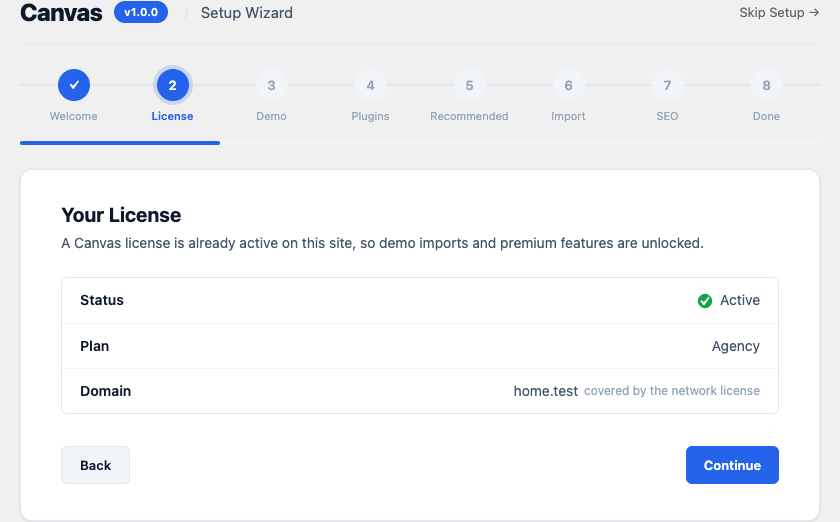
The second screen is where the rest of the wizard earns its content: an active license is what fills the demo library on the very next step and unlocks premium blocks and automatic updates. The step shows one of three things, depending on where your site already stands.
No license yet. You see a single License key field and an Activate License button. Paste your key and select the button; the key lives on the Licenses page of your Canvas account, and a line under the field points there. Activation talks to the Canvas service once, on the click, and the screen reloads into the active summary the moment it succeeds. If you are not ready, select Skip for now; the step states the consequence plainly: demo imports and premium features unlock when a license is active, and you can activate later under Canvas > License.
Already active. When the site is licensed before the wizard runs, which is the usual case when Canvas Core was installed through a licensed setup, the step is a quiet summary instead: the status, your plan if the service reported one, and the domain the license covers. There is nothing to re-enter; select Continue. On a multisite network a subsite covered by the network license says so on the domain line.
Refused or lapsed. A key the service refuses shows the service's own answer in place, for example "This license key is not valid.", and the button re-arms so you can correct the key and try again, or skip. An expired license says so above the field and accepts a renewal or a different key. When the license service cannot be reached, your license keeps working within a grace period and the summary names the date it runs to.
Demo
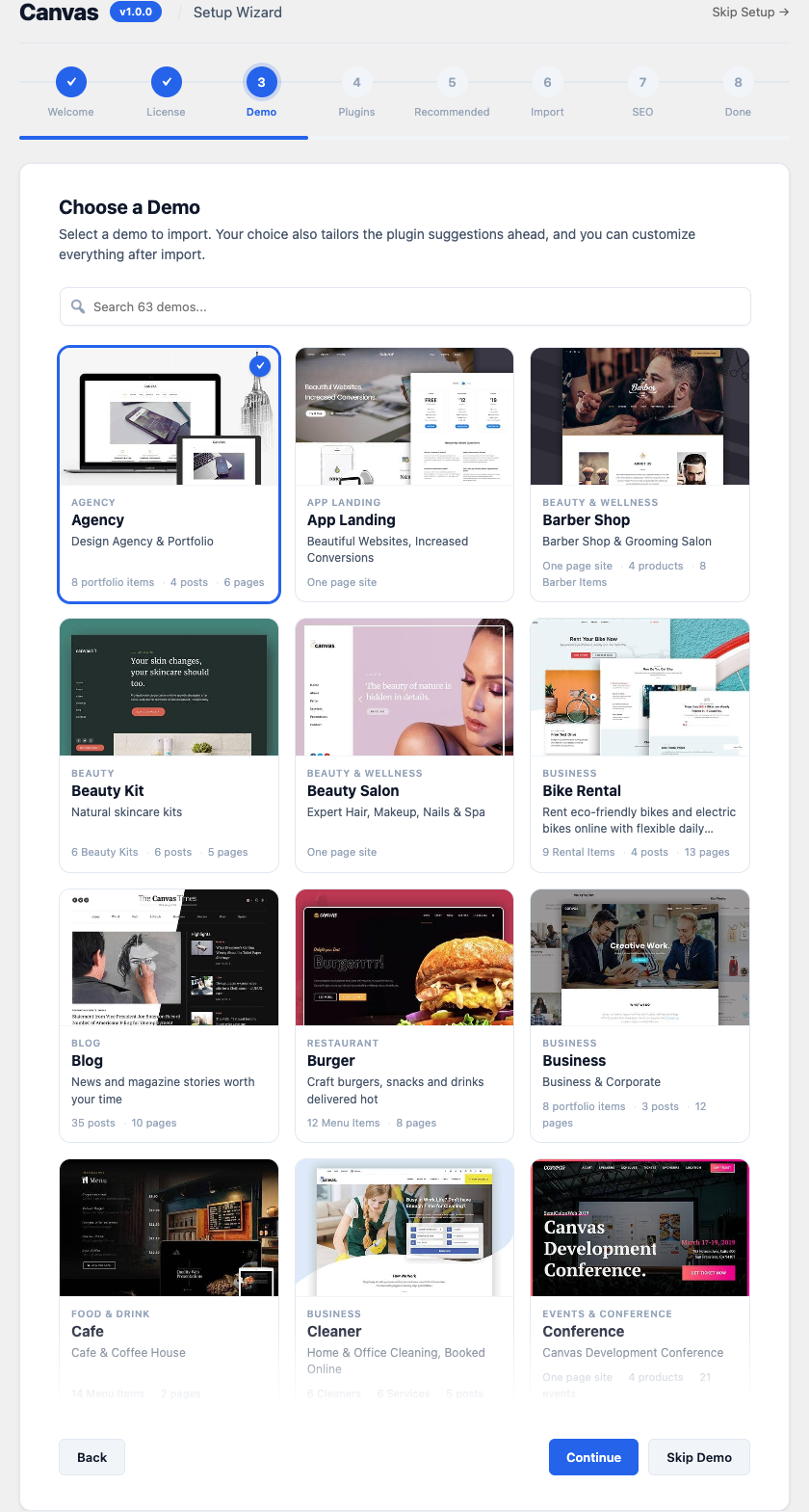
The Choose a Demo step shows the Canvas demo library. Pick the design closest to your goal and select Continue, because a demo imports as a complete website (pages, menus, headers, footers, settings) and editing something real is faster than assembling from nothing. What A Demo Includes describes exactly what arrives.
Each card carries the design's preview, its category, its name, a one line description and two or three facts read from the package itself, so you can tell a one page site from a store, a portfolio or a busy blog without opening anything. Selecting a card rings it and marks it with a tick, and only one card is selected at a time. The grid is a radio group, so once a card has keyboard focus the arrow keys move the selection through it. The grid scrolls inside the step rather than stretching the page, so Continue and Skip Demo stay in view however long the library is; a faded bottom edge means there are more demos below, and it clears when you reach the end.
Your choice does more than queue an import. Canvas reads the design's category and the content inside its package, works out what kind of site you are building, and uses that to pick the plugin suggestions two steps ahead. Choose a store and WooCommerce is offered; choose a portfolio or a one page site and it is not. You are never asked to classify your site yourself, and nothing here locks the site into a mode.
Every demo is premium. The step says so once above the grid rather than on every card, and the preview art is never dimmed, because the preview is what you are choosing. Your license is checked when the import runs, not when you pick a card.
Skip Demo moves on to the plugin steps without queueing anything, so the rest of the wizard still runs. With no design chosen Canvas has nothing to read, so the plugin suggestions fall back to a general business set. When the library cannot be reached, or no license is active on the site, the step says so in place of the grid. Activating on the wizard's License step is the direct fix, because the library refreshes against your license the moment activation succeeds; you can also finish the wizard and import later from Canvas > Demo Import, as How To Import A Demo walks through.
Plugins
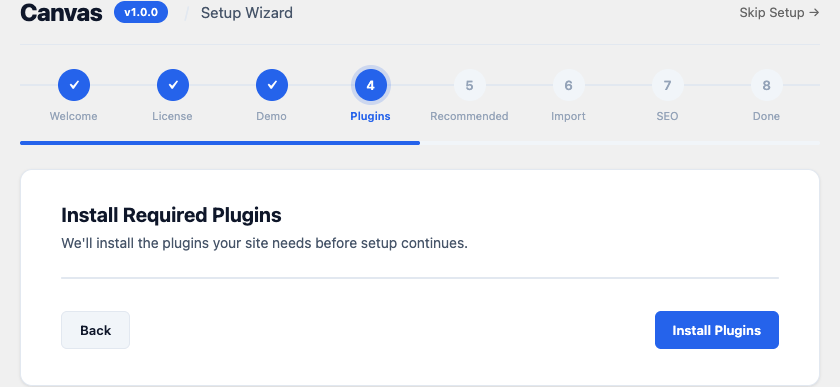
The Install Required Plugins step installs anything your chosen design cannot work without. Canvas is built on the block editor and requires no page builder plugin, so on a standard setup this list is empty and the step is a formality. Select Install Plugins; each listed plugin reports its own result, a failed install marks only its own row, and when the list has resolved a Continue button appears in its place.
Recommended
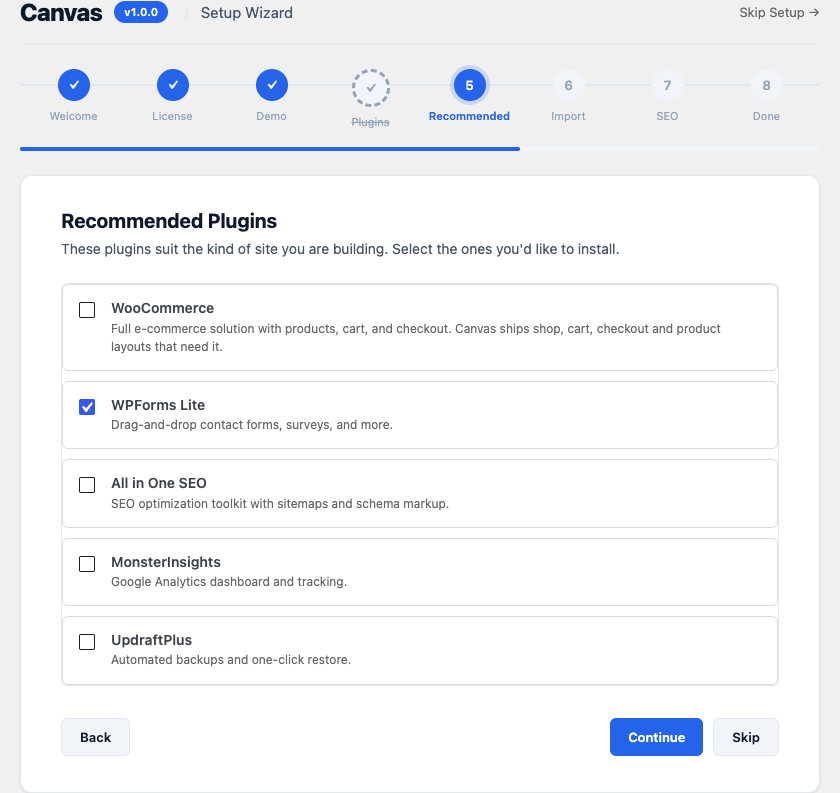
The Recommended Plugins step suggests supporting plugins for the kind of site your demo describes, each with a checkbox. WPForms Lite arrives preselected, and All in One SEO, MonsterInsights and UpdraftPlus wait unticked. A design that ships a store adds WooCommerce, preselected. A blog or magazine design is offered Yoast SEO as well. Tick what you will genuinely use and select Continue, or Skip to move on without saving a selection. Fewer plugins is the better default, because each one adds weight your visitors carry.
Import
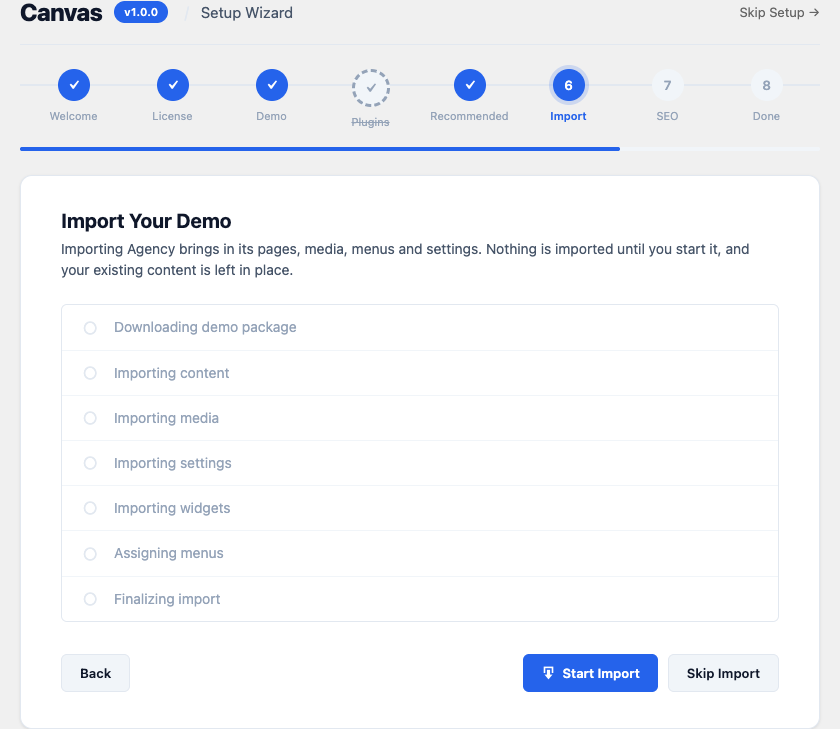
The Import step lists the seven stages the import will run (Downloading demo package, Importing content, Importing media, Importing settings, Importing widgets, Assigning menus and Finalizing import) and then waits for you. Select Start Import to begin, because nothing is imported until you ask for it and your existing content is left in place. Skip Import moves on without importing anything, and Back returns to the Recommended step.
Once it is running the screen marks each stage as it finishes. Leave the tab open while it runs; media arrives in batches and a full demo can take a few minutes. When the last stage completes, select Continue.
If a stage fails it is marked on the spot, the sequence stops there, and Continue appears anyway so you are never stuck inside the wizard.
Reloading the page, or coming back to the wizard while an import is part way through, brings you to Import Interrupted. It shows how far the run got and offers Resume in Demo Import, which carries on from the stage it reached instead of repeating the stages that already succeeded. Select Continue if you would rather finish the wizard and deal with the import afterwards.
When the chosen demo has already been imported, the step says Import Complete and offers Continue, so running the wizard a second time never imports the same demo twice.
If you skipped the demo step, this screen says No Demo Selected instead of listing stages, confirms that your existing content is untouched, and offers Back and Continue at once.
SEO
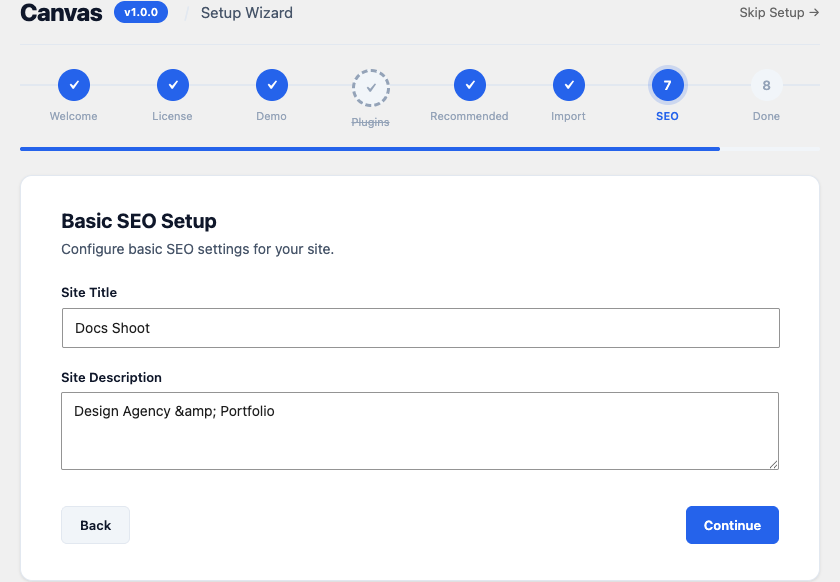
The Basic SEO Setup step asks for two values that WordPress and search engines both read:
- Site Title The name of the site. Saved as the WordPress site title, the same value as Settings > General.
- Site Description The tagline, one sentence on what the site is. Saved as the WordPress tagline.
Canvas derives page titles and descriptions from your live content, so these two values are the seed, not a metadata form to maintain. Fill them in and select Continue.
Done
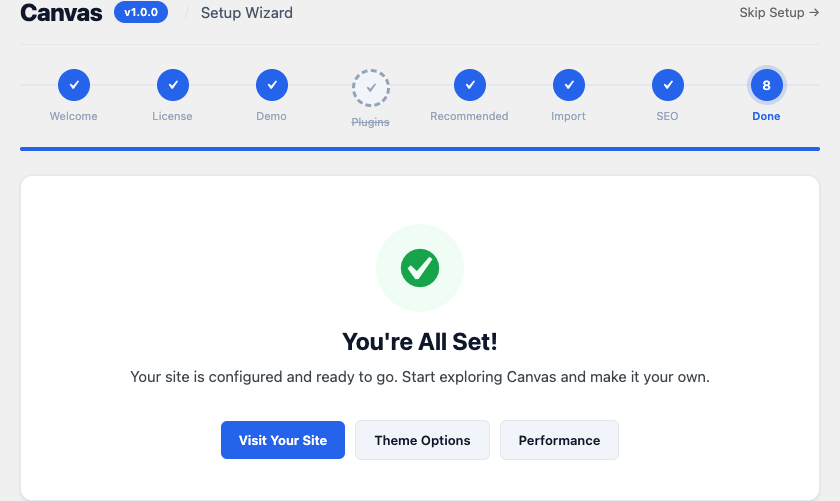
The final screen confirms with "You're All Set!" and offers three exits: Visit Your Site to see the result, Theme Options for the settings hub, and Performance for the speed toggles. Reaching this screen records the wizard as finished, so its reminder disappears from the Canvas Dashboard. Visit the site first; if you imported a demo, what loads is a finished working website, and everything on it is editable.
Note
Nothing the wizard sets is final. Plugins can be deactivated like any other, an imported demo can be replaced or removed from Canvas > Demo Import, and the title and tagline live in Settings > General. Running the wizard again from Canvas > Setup Wizard is always safe.
Pitfalls
You closed the wizard partway through. Reopening it from Canvas > Setup Wizard returns you to the step you were on, and the choices you already made were saved as you left each step, so they arrive pre-selected. Use Back if you want to revisit an earlier answer.
The Demo step shows no demos. The library needs an active license on this site and a connection to the Canvas service, and the step says so when the grid is empty. Go Back to the License step and activate there, or finish the wizard and import later from Canvas > Demo Import; activating is also covered in How To Activate Your License.
The Recommended step does not offer WooCommerce. That is the demo choice at work: Canvas only suggests a store plugin for a design that ships a store. Install WooCommerce from Plugins > Add New whenever you want one, or go Back to the Demo step and pick a store design.
An import stage turned red. The sequence stops at the failed stage rather than pretending to finish. Low server limits are the usual cause: open Canvas > Health Check, clear what it flags, then retry the import from Canvas > Demo Import, which can resume rather than start over.
What To Read Next
- Your First Site In Fifteen Minutes, the full path this wizard sits in the middle of.
- How To Install The Theme and How To Install Canvas Core, the two installs that come before it.
- Building On Top Of A Demo, for the first edits after an import.