
Credits And Plans
Every generation spends a credit from a monthly allowance that belongs to your Canvas license. Text and images are counted separately, the balance is shown before you spend anything, both in the dialogs and on the AI tab, and the allowance refills at the start of each month. This page explains where to read the balance, what running out looks like, and what the AI controls do on a site with no active license.
How Credits Are Counted
Four facts cover the whole system:
- Text and images draw from separate pools. Using up your images for the month leaves your text generations untouched, and the other way round.
- The allowance belongs to the license, not to a person. Everyone on the site who is allowed to generate draws from the same pool, which is why Available To on the AI tab of Theme Options is worth narrowing on a site with many contributors.
- Only generating spends. Opening a dialog, reading the balance and closing again costs nothing. Generate and Regenerate each spend one, so a result you ask for three times costs three.
- The month resets. The allowance refills on the date the dialog names, and unspent credits do not carry forward.
Where The Balance Is Shown
The bottom left of every generation dialog carries a chip with the current count, fetched when the dialog opens:

It reads as your usage against the month's allowance, followed by when the allowance refills: Resets today, Resets tomorrow, or Resets in so many days. An allowance with no cap shows the running count on its own, with Unlimited in place of a limit, which is the form in the picture above.
The chip changes as the month goes on. It shows a warning once five or fewer credits are left, or once less than a tenth of the month's allowance remains, and marks the pool as spent when nothing is left.
Turning Show Credits in Dialogs off on the AI tab hides the chip, for sites where the count is a distraction rather than a help. It does not change the allowance or the counting.
The AI tab itself carries the same figures for both pools at once, under the heading AI usage, so you can read the month's position without opening a dialog. It shows text and images side by side, as in Text 3/200 · Images 4/50, and an allowance with no cap reads unlimited in place of a limit. The numbers come from the same reading the dialogs use, so the two never disagree, and the line updates after a generation made on that screen. A site with no active licence shows the upgrade prompt here instead of a count.
When The Allowance Runs Out
Generate stops being available, and the dialog replaces its form with a short notice headed AI Credits Used Up. It states how many credits the month held and the date they reset, and offers Upgrade for more credits, which opens the billing area of your Canvas account at https://dashboard.canvaswp.com/billing, where you sign in and move to a plan with a larger allowance. Nothing else is affected: your site keeps rendering, every generation you already accepted stays exactly where you put it, and the other pool keeps working until it runs out too.
If you would rather wait, the reset date in the notice is when the dialog starts working again.
What A Plan Includes
The size of each month's allowance is set by your plan, and the plans themselves are covered in Plans And What A Site Means. Moving between plans is self service and keeps the key you already have, so an upgrade is never a second license to enter.
Without An Active License
Generation runs through the Canvas service, and the service answers only for a licensed site. On a site with no active license the AI controls stay exactly where they are, because they are the way in to activating: choosing one opens the license notice rather than the dialog.
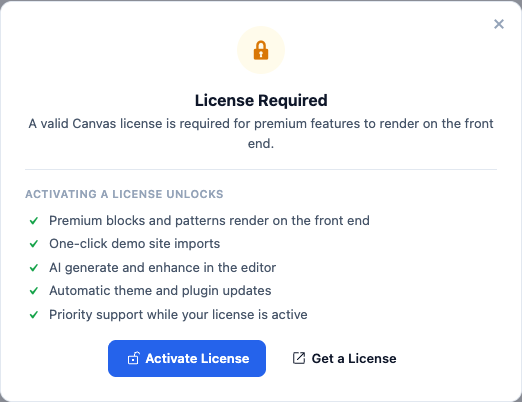
Above the buttons the notice lists what activating a license unlocks: premium blocks and patterns rendering on the front end, one-click demo site imports, AI generate and enhance in the editor, automatic theme and plugin updates, and priority support while your license is active.
Activate License opens the Canvas license screen in your admin, where a key is entered; How To Activate Your License walks that through. Get a License opens the billing area of your Canvas account at https://dashboard.canvaswp.com/billing, signing in first. Activate, reload the screen, and the same buttons start generating, with nothing to reconfigure.
An expired license behaves the same way for generation and says so in its own words, offering Renew License instead. What Happens When A License Expires covers what else changes and what carries on regardless.
Note
A license in its grace period, which is what a site falls back on when the license service cannot be reached, generates normally. An outage at our end is never turned into a request to buy something.
Pitfalls
The chip is missing from the dialog. Either Show Credits in Dialogs is off, or the service could not be reached when the dialog opened. An unreadable balance shows no chip rather than a wrong one, and generation is still worth trying.
The count looks stale. The balance is read once and reused for a short while, so two dialogs opened in quick succession can show the same figure. Generating refreshes it from the service, so the number after a generation is the authoritative one.
The count is higher than the work you kept. Every result that came back counts, including the ones you regenerated past and the ones you closed the dialog on without accepting. Credits are spent by asking, not by keeping, so refine the description before asking again rather than after.
Someone else is spending them. The allowance is shared across everyone on the site who can generate. Narrow Available To on the AI tab if that is not what you want.
What To Read Next
- When AI Is Unavailable, for the messages that are not about credits.
- Grounding Output In Your Site, for the settings tab these options live on.
- Plans And What A Site Means, for the plan ladder itself.