
Generating Images
Canvas AI makes images the same way it writes copy: from a description, in the place you need the picture. A generated image is saved into your media library as a normal attachment, so it behaves like an upload from the moment you accept it. This page covers the routes in, the aspect ratio choices and the custom size path.
Where To Start
There are three ways in, and they open the same dialog:
- The Media Library screen. A Generate with AI button sits beside Add Media File at the top of Media > Library. Use it when you want a picture in the library and will place it later.
- The media modal. Wherever WordPress opens its media picker, a third tab named Generate with AI sits after Upload files and Media Library. Use it when you are already choosing an image for something and none of the existing ones fit.
- The block toolbar and image fields. A selected block that holds an image offers Generate image in its Canvas AI menu, and an image field in a block's settings carries its own AI button. Both fill that image in place.
The button on the Media Library screen:

And the tab inside the media picker:
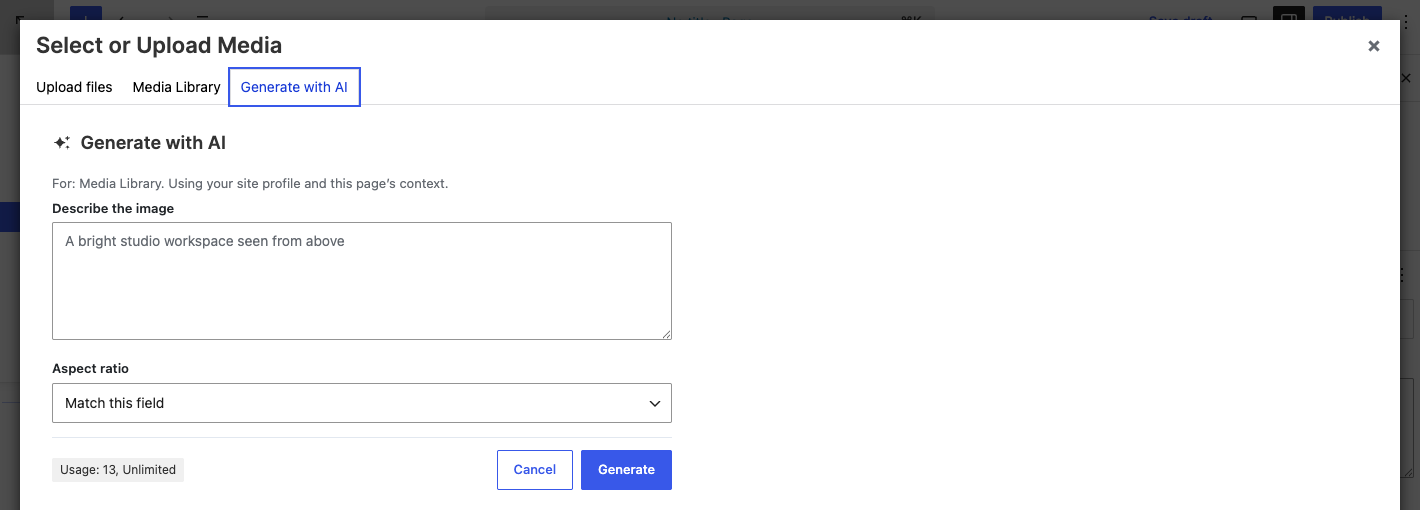
The Dialog
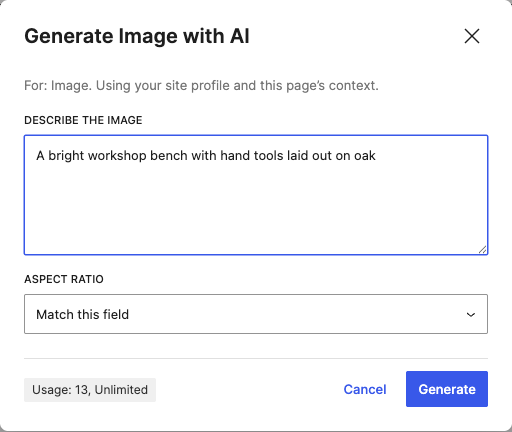
Two controls decide the picture:
- Describe the image What should be in it, and how it should look. Concrete nouns, a setting and a mood work better than adjectives alone. This is the only part of the request that is yours to write.
- Aspect ratio The shape of the result. Each choice states its pixel size, so you know exactly what lands in your library.
The ratios on offer, in the order the control lists them:
- Match this field, the default, which lets Canvas choose from what the image is for. A hero, banner, cover, slide or masthead comes back wide; an avatar, portrait, profile or member picture comes back square; a card, tile, thumbnail or gallery image comes back landscape. When nothing about the field suggests a shape, the Default Image Aspect setting decides, and Credits And Plans shows where that lives.
- Square 1:1 (1024 x 1024)
- Wide 16:9 (1280 x 720)
- Landscape 4:3 (1152 x 864)
- Photo 3:2 (1248 x 832)
- Photo tall 2:3 (832 x 1248)
- Portrait 3:4 (864 x 1152)
- Story 9:16 (720 x 1280)
- Banner 21:9 (1344 x 576)
- Custom size, which reveals the two boxes below.
A chosen ratio governs the result, and its pixel size is fixed. Width and Height are ignored while a ratio is selected, which is why they stay hidden until you ask for a custom size.
Choosing An Exact Size
Select Custom size and the dialog reveals Width and Height beside the ratio control:
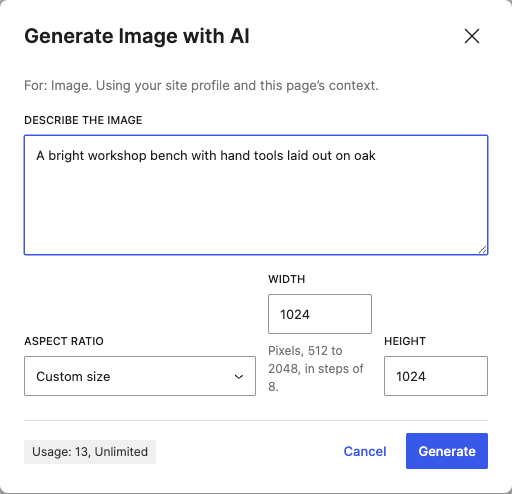
- Width and Height Pixels, 512 to 2048, in steps of 8. Both start at 1024. They travel as a pair, so set both.
Use a custom size when the slot has a shape none of the presets match, such as a tall narrow column or a wide strip above a footer. For everything else a preset is quicker and its output size is already tuned.
Using The Result
The generated picture previews inside the dialog. Select it to open it full size, which is worth doing before you accept, because detail that reads well at preview size sometimes does not survive a close look.
Accept it and the image enters your media library. From the Media Library screen and the media picker the action reads Add to media library; from a block or a field it reads Use image and fills that image in as well.
Once it is in the library it is an ordinary attachment:
- Its title and its alt text are taken from your description, so review both. Alt text written for you is a starting point, not a finished description of the picture.
- It can be renamed, edited, cropped, replaced and reused on any page.
- WordPress generates its usual sizes from it, so it works in galleries, featured images and everywhere else.
Because it is saved rather than embedded, generating the same picture twice is never necessary: find it in the library and use it again.
Note
Generating an image needs permission to upload files as well as permission to generate. A contributor who can write copy with Canvas AI may still not be able to make pictures with it, because contributors cannot upload media in WordPress.
Pitfalls
There is no Generate with AI tab in the media picker. The tab is added to the standard WordPress media picker. A plugin that builds its own picker instead of using the standard one has no tab to add, so use the Media Library screen and place the picture afterwards.
Width and Height are missing. They only appear once Custom size is chosen. While a ratio is selected the size comes with the ratio.
The picture came back the wrong shape. Match this field reads the name of the thing being filled, which is a good guess and not a promise. Choose the ratio you want explicitly.
The alt text is a copy of the description. That is exactly what it is. Open the attachment and write alt text that describes the picture for someone who cannot see it, which is a different sentence from the one that made it.
Generate image is missing from the block toolbar. The menu offers it on blocks that hold an image. A block with no image to fill does not show it, and neither does a code oriented block.
What To Read Next
- Generating And Enhancing Text, the same dialog for words.
- Grounding Output In Your Site, including the site colours that travel with an image request.
- Credits And Plans, because images draw from an allowance of their own.