
Generating And Enhancing Text
Canvas AI writes text in three places, and all three open the same dialog. This page walks each route, explains every control in the dialog, and sets out what Enhance keeps and what it is free to change, so you can pick the right one for the job in front of you.
Starting screenthe block editor, on the page or post you are building.
From A Field
Open the block's settings in the sidebar. Any field holding visitor facing words carries a small AI button under it. Choose it and the dialog opens already knowing which field it is filling, which is why its second line reads "For: Description" or whichever field you started from.

This is the route to use when the words belong to a specific setting, such as a heading, a subtitle or a call to action, because the result goes straight into that setting when you accept it.
From The Block Toolbar
Select a block and its toolbar shows a Canvas AI menu behind a sparkle icon. It offers Generate text and Enhance text, and adds Generate image on a block that holds an image.
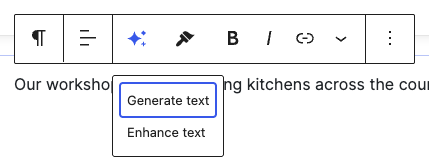
Generate text stays available on a block that already has words, because the dialog lets you insert alongside them or replace them, and that is your decision rather than the toolbar's. Enhance text is greyed out until the block has something to work on.
The toolbar route writes into the block's main text. On a paragraph or a heading that is the paragraph or heading itself; on a Canvas block it is the field that block treats as its copy.
From A Selection
Highlight part of a text block and open the formatting menu behind the chevron in the toolbar. Enhance with Canvas AI sits at the top of it.
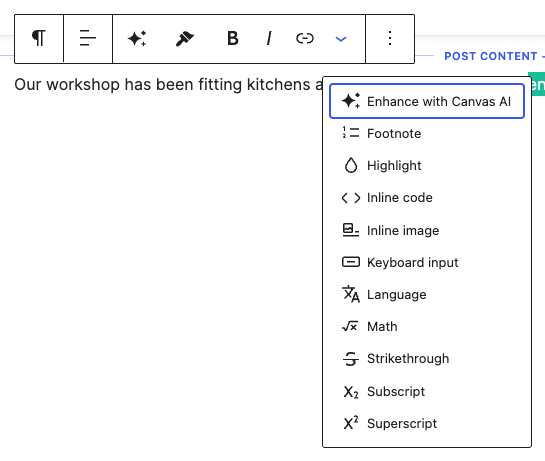
This is the precise tool: it rewrites the highlighted words only, and puts the result back in their place. Everything around the selection, including links, bold and any other formatting outside the highlight, is untouched. Choosing the button applies no formatting of its own, so opening it and changing your mind leaves your saved content exactly as it was.
The passage on either side of your selection travels with the request as context, so the replacement reads as part of the sentence it lands in rather than as a standalone line.
The Dialog
Whichever route you took, the dialog is the same.
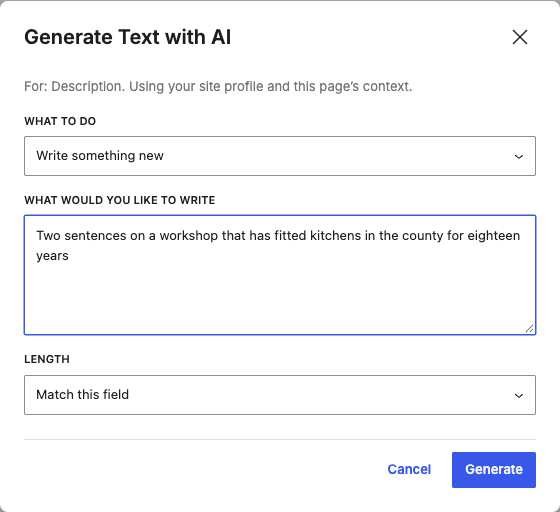
Its controls, top to bottom:
- What to do Shown only when there is already text to work on. Write something new ignores the current words; Improve the current text takes them as the starting point.
- Current text A read only view of what is there now, shown while you are improving it, so you can see what is about to be reworked.
- What would you like to write Your description of the copy you want. Be concrete about subject, audience and length, because this is the one part of the request that is yours alone. Everything else Canvas supplies for you.
- Length Match this field lets the field's own nature decide, which is usually right: a title comes back short and a description comes back as a paragraph. Short, Medium and Long override it when you want something else.
Choose Generate and the button changes to Generating while the request runs. Cancel closes the dialog without changing anything.
What Comes Back
The result lands in an editable Suggestion box, with the actions beside it.
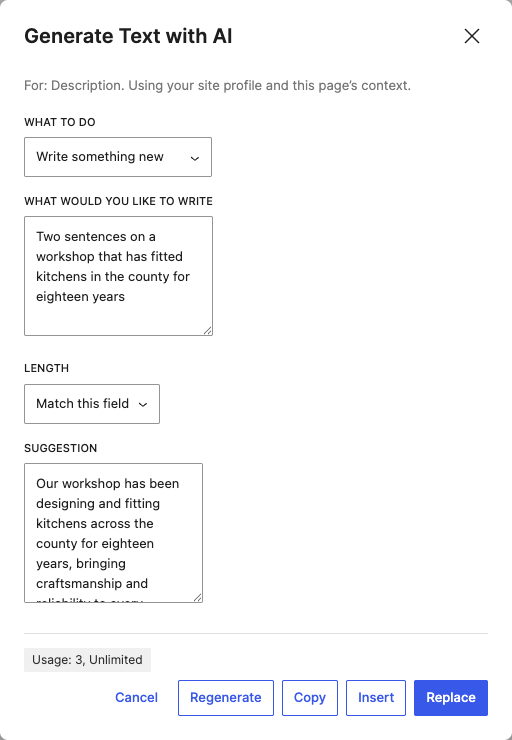
What each action does:
- Replace puts the suggestion in place of what the field or selection held.
- Insert adds it after the existing content instead of replacing it, which is how you build a paragraph across two generations.
- Copy puts it on your clipboard and changes to Copied, for when it belongs somewhere else entirely.
- Regenerate asks again with the same description. Each attempt spends from your allowance, so edit the description first if the last answer missed by a mile.
Edit the suggestion in the box before you accept it. The text that lands is the text you can see, not the text that arrived.
What Enhance Preserves
Enhance is given the exact words you pointed it at, and nothing wider:
- From a field, it works on that field's current value.
- From the block toolbar, it works on the block's text.
- From a selection, it works on the highlighted characters only, with a short run of text either side sent as context but never rewritten.
It keeps the subject. What it is free to change is the wording, the rhythm and the length, within the Length you chose. If a result drifts away from your meaning, say what to keep in the description: the description is read alongside the existing text, not instead of it.
Note
Nothing you do in the dialog is saved until you accept a result, and accepting one is an ordinary editor change. Undo reverses it like any other edit, and the page is only published when you publish it.
Pitfalls
Generate stays greyed out. The button needs a description before it will run, and it also refuses while the month's allowance is spent. The chip in the bottom left of the dialog tells you which of the two it is.
Enhance text is greyed out on the toolbar. The block has no text yet. Type something, or use Generate text instead, then enhance the result.
A block with no words has no Canvas AI menu. The menu appears on blocks that hold text or an image. A block that holds neither, such as a spacer or a separator, has nothing for it to fill.
Nothing appeared on a Code or Custom HTML block. Generation is deliberately kept out of code blocks, so neither the toolbar menu nor the selection button is offered inside Code, Custom HTML, Preformatted, Classic or Shortcode blocks.
The result reads like anyone's website. The description is only half the request. Fill in the brand profile once, as Grounding Output In Your Site sets out, and every later generation starts from your business instead of a blank one.
What To Read Next
- Generating Images, the same dialog in its picture making form.
- Where The AI Button Appears, why some fields carry the button and others do not.
- Shared Block Controls, the panels the AI button sits alongside.