
Grounding Output In Your Site
Out of the box Canvas AI knows nothing about your business, so its first results read like anyone's website. Five fields on the AI tab of Theme Options fix that permanently: they travel with every request from then on, from every page, for every person on the site. This page covers what to put in them and what else Canvas sends alongside them, so you know what the results are being written from.
The Brand Profile
Starting screenCanvasTheme Options, on the AI tab.
The tab opens on Brand Profile, and its fields are the durable part of every request:
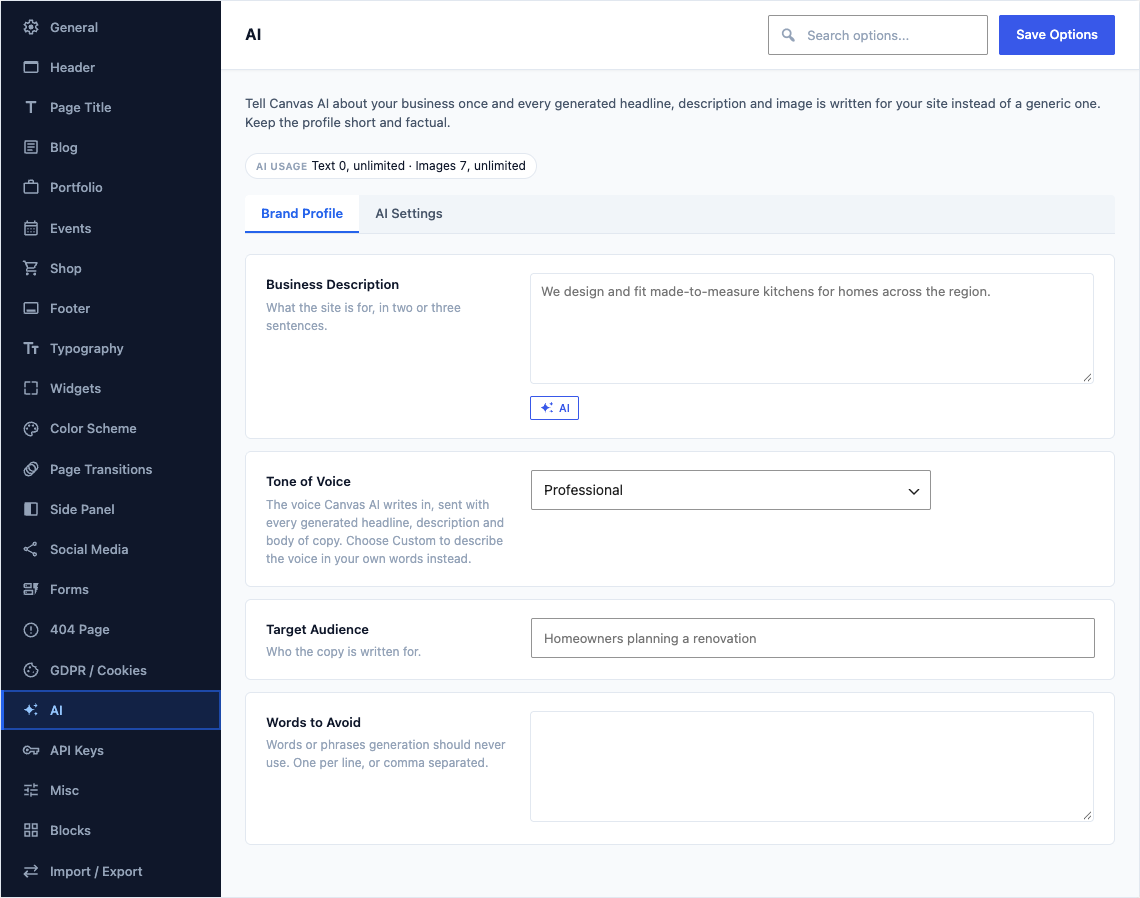
Business DescriptionDefaultEmpty
What the site is for, in two or three sentences.
Shown when Enable AI Generation is on
Tone of VoiceDefaultProfessional
The voice Canvas AI writes in, sent with every generated headline, description and body of copy. Choose Custom to describe the voice in your own words instead.
ChoicesProfessionalFriendlyBoldMinimalPlayfulCustom…Shown when Enable AI Generation is on
Custom ToneDefaultEmpty
Describe the voice in your own words.
Shown when Enable AI Generation is on and Tone of Voice is "Custom…"
Target AudienceDefaultEmpty
Who the copy is written for.
Shown when Enable AI Generation is on
Words to AvoidDefaultEmpty
Words or phrases generation should never use. One per line, or comma separated.
Shown when Enable AI Generation is on
Two or three honest sentences in Business Description change the output more than any amount of prompt writing per field, because they are read on every generation and a prompt is read once. Say what you sell or do, to whom, and where. Keep it factual: this is the description the AI writes from, so anything vague in it comes back vague in the copy.
Target Audience does the same job for register. "Homeowners planning a renovation" and "procurement managers at mid sized manufacturers" produce genuinely different sentences from the same description.
Words to Avoid is the fastest way to stop a habit you do not like. List the words one per line or separated by commas, and they stop appearing.
What Else Travels With A Request
The brand profile is the part you write. Canvas assembles the rest for you, on your own server, at the moment you choose Generate:
- Your site. Its name, its tagline, its language and its address.
- The page you are on. Its title, and the title of its parent page when it has one, so a generation on a child page knows the section it belongs to.
- What is already on the page. A short digest of the existing content, so a new paragraph does not repeat the one above it or contradict it.
- The field you are filling. Its name and label, what kind of value it holds, and how long an answer it expects, which is what Match this field is reading when it decides between a headline and a paragraph.
- The block it belongs to. Its name and its title, so a testimonial reads as a testimonial and a pricing note reads as a pricing note.
- Your selection. When you started from highlighted words, the highlight itself plus a short run of text either side, so the replacement fits the sentence it lands in.
- For an image, the shape you asked for and the colour palette of your theme, so a generated picture sits alongside your design rather than fighting it.
Two things are worth knowing about how that is handled. Everything is assembled on your own site rather than in your browser, so a person editing a page cannot change what is sent about it. And everything is measured and trimmed: contact details are stripped out of the page digest, long values are shortened, and when the whole thing is still too large the digest and the selection window are dropped before your brand profile is, so the part you wrote always survives.
Who Can Generate
The same tab decides who may use the feature at all, and how the dialogs behave:
Enable AI GenerationDefaultOn
Turn this off to remove every Generate with AI control and stop all requests to the Canvas AI service. Generating sends your prompt, some page text, your site details and your Brand Profile.
Available ToDefaultContributors and above
The lowest role allowed to generate. Credits are shared across the whole site.
ChoicesContributors and aboveAuthors and aboveEditors and aboveAdministrators onlyShown when Enable AI Generation is on
Show Credits in DialogsDefaultOn
Display how many AI credits this month are left when a generation dialog opens.
Shown when Enable AI Generation is on
Default Image AspectDefaultSquare (1:1)
Used when the field being filled does not imply one.
ChoicesSquare (1:1)Landscape (4:3)Wide (16:9)Portrait (3:4)Shown when Enable AI Generation is on
Available To raises the floor from the default. Everyone allowed to generate draws on the same allowance, which is why narrowing this is a reasonable step on a site with many contributors. Credits And Plans covers the allowance itself.
How To Test Your Profile
Filling the profile in is quick, and proving it worked takes one generation:
- Save the AI tab with a description and an audience filled in.
- Open any page, select a paragraph block and choose Generate text from its Canvas AI menu.
- Ask for something deliberately unspecific, such as "an opening line for this page".
- Read the result. It should name what you do, in the register your audience expects. If it could belong to any business, the description is too vague or too short.
Note
The brand profile applies to the whole site, so a change here is visible on every page that generates afterwards. Existing content is never rewritten by editing it.
Pitfalls
The output still sounds generic. The description is empty, or it says what the site is rather than what the business does. "A website for our company" tells the AI nothing; "We design and fit made to measure kitchens for homes across the county" tells it everything.
A tone was chosen but nothing changed. Tone of Voice is a broad steer, not a style guide. Where it is not enough, choose Custom… and describe the voice in your own words in the field it reveals.
Words to Avoid is being ignored. Check the list is words and short phrases rather than sentences, and that it is one per line or comma separated. A paragraph of instructions in that field is not a list.
Results ignore the rest of the page. The digest of existing content is short by design and is the first thing dropped when a request would otherwise be too large. On a very long page, say what matters in the description instead of expecting it to be read from the page.
What To Read Next
- Generating And Enhancing Text, the dialog these settings feed.
- Credits And Plans, for the allowance and who spends it.
- The full AI options reference, for every setting on the tab in one place.