
AI
Tell Canvas AI about your business once and every generated headline, description and image is written for your site instead of a generic one. Keep the profile short and factual.
These settings apply to the whole site, so a change here is visible on every page that uses the feature. Find them under Canvas > Theme Options, in the AI tab.
The tab sits in the rail on the left of the screen, with its own panel beside it:
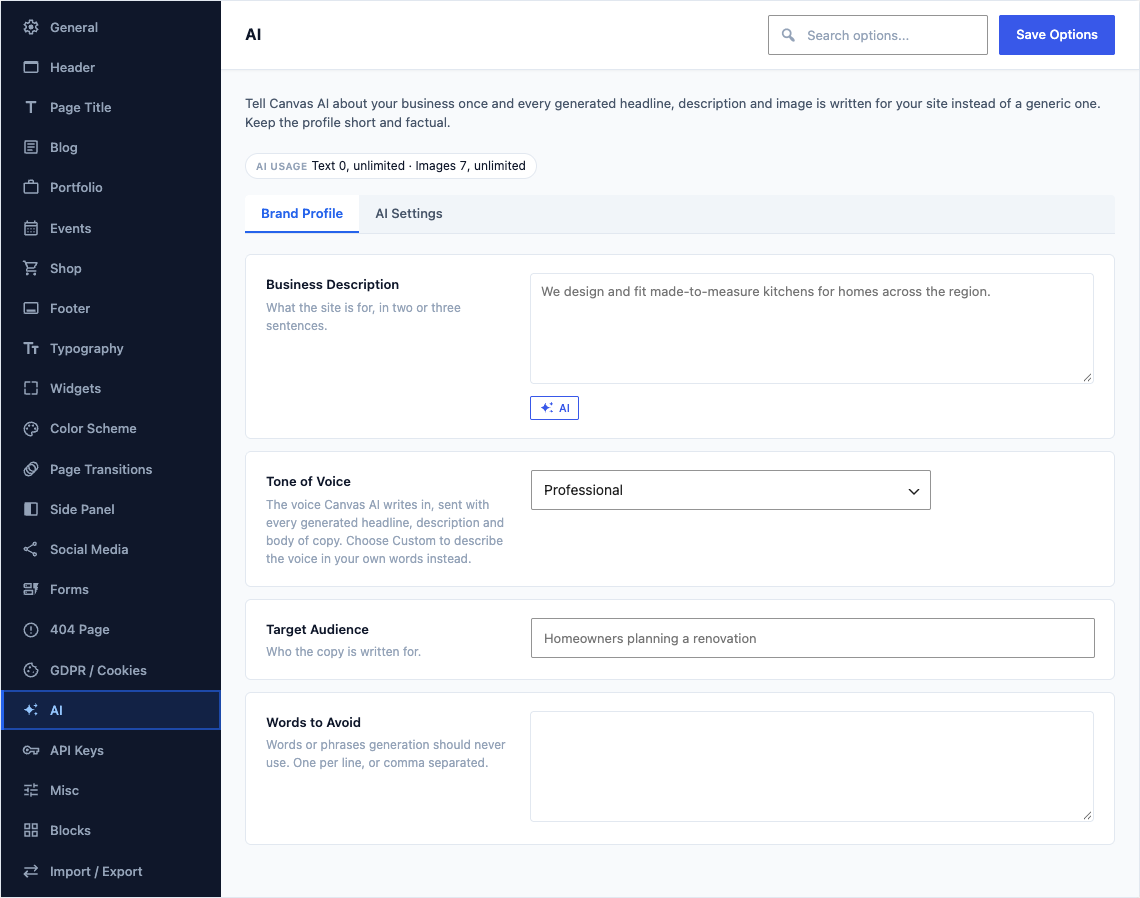
Brand Profile
This group holds the following settings:
Business DescriptionDefaultEmpty
What the site is for, in two or three sentences.
Shown when Enable AI Generation is on
Tone of VoiceDefaultProfessional
The voice Canvas AI writes in, sent with every generated headline, description and body of copy. Choose Custom to describe the voice in your own words instead.
ChoicesProfessionalFriendlyBoldMinimalPlayfulCustom…Shown when Enable AI Generation is on
Custom ToneDefaultEmpty
Describe the voice in your own words.
Shown when Enable AI Generation is on and Tone of Voice is "Custom…"
Target AudienceDefaultEmpty
Who the copy is written for.
Shown when Enable AI Generation is on
Words to AvoidDefaultEmpty
Words or phrases generation should never use. One per line, or comma separated.
Shown when Enable AI Generation is on
AI Settings
This group holds the following settings:
Enable AI GenerationDefaultOn
Turn this off to remove every Generate with AI control and stop all requests to the Canvas AI service. Generating sends your prompt, some page text, your site details and your Brand Profile.
Available ToDefaultContributors and above
The lowest role allowed to generate. Credits are shared across the whole site.
ChoicesContributors and aboveAuthors and aboveEditors and aboveAdministrators onlyShown when Enable AI Generation is on
Show Credits in DialogsDefaultOn
Display how many AI credits this month are left when a generation dialog opens.
Shown when Enable AI Generation is on
Default Image AspectDefaultSquare (1:1)
Used when the field being filled does not imply one.
ChoicesSquare (1:1)Landscape (4:3)Wide (16:9)Portrait (3:4)Shown when Enable AI Generation is on