
Wishlist
Let shoppers save products for later, and choose where the wishlist controls appear.
These settings apply to the whole site, so a change here is visible on every page that uses the feature. Find them under Canvas > Theme Options, in the Wishlist tab.
The tab sits in the rail on the left of the screen, with its own panel beside it:
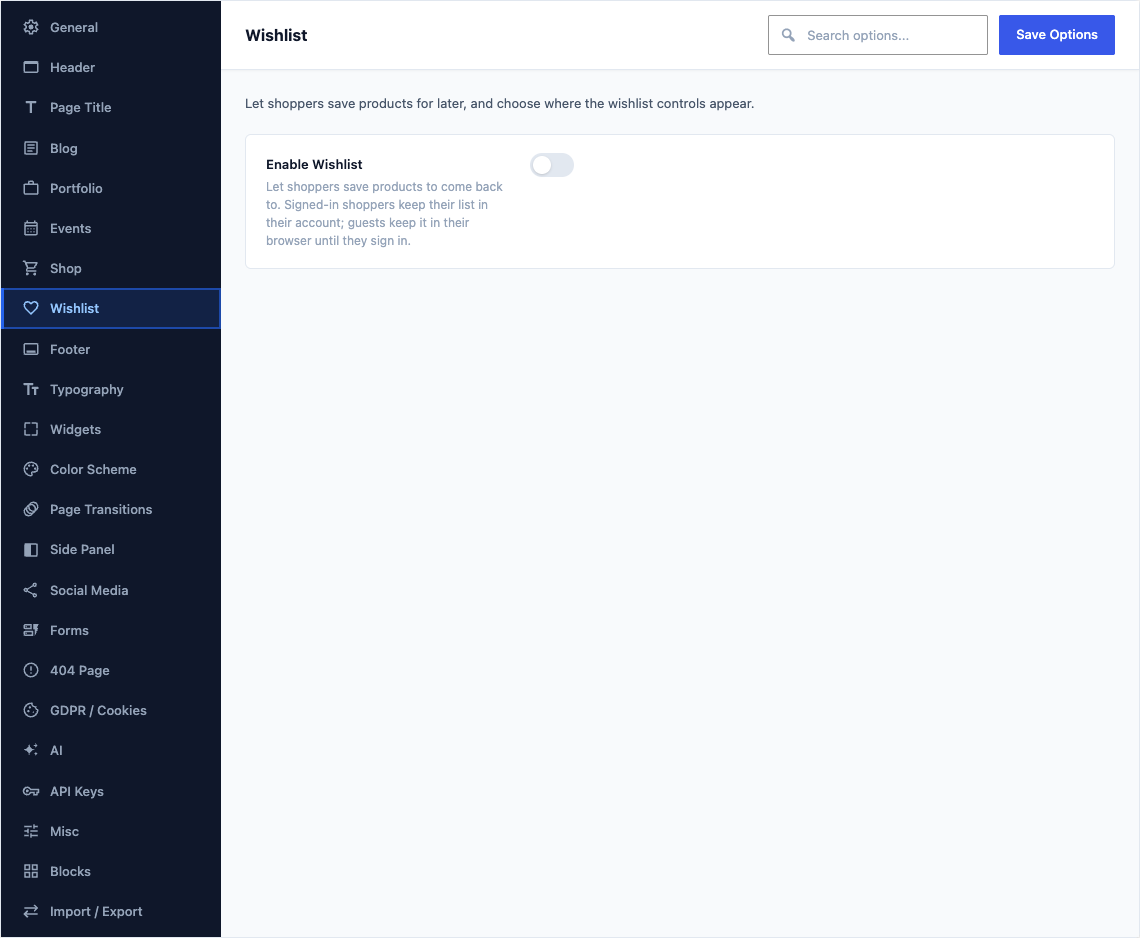
This group holds the following settings:
Enable WishlistDefaultOff
Let shoppers save products to come back to. Signed-in shoppers keep their list in their account; guests keep it in their browser until they sign in.
Wishlist PageDefaultEmpty
A page that holds the Wishlist block. Leave it empty to send shoppers to the Wishlist tab in My Account.
Shown when Enable Wishlist is on
Allow GuestsDefaultOn
Turn this off to ask shoppers to sign in before they save a product.
Shown when Enable Wishlist is on
Heart on Product CardsDefaultOn
Adds a heart beside the add to cart and quick view icons that appear over a product card on hover.
Shown when Enable Wishlist is on
Link on the Product PageDefaultOn
Shows an Add to Wishlist link under the Add to Cart button.
Shown when Enable Wishlist is on
Header IconDefaultOn
Shows a heart with the number of saved products beside the header cart. The Canvas Header Wishlist block places it anywhere else.
Shown when Enable Wishlist is on
Add TextDefaultEmpty
Shown when Enable Wishlist is on
Remove TextDefaultEmpty
Shown once the product is saved.
Shown when Enable Wishlist is on