
Footer
Configure footer and copyrights appearance. Create and manage footers and copyrights with the block editor, then assign global defaults or override per page.
These settings apply to the whole site, so a change here is visible on every page that uses the feature. Find them under Canvas > Theme Options, in the Footer tab.
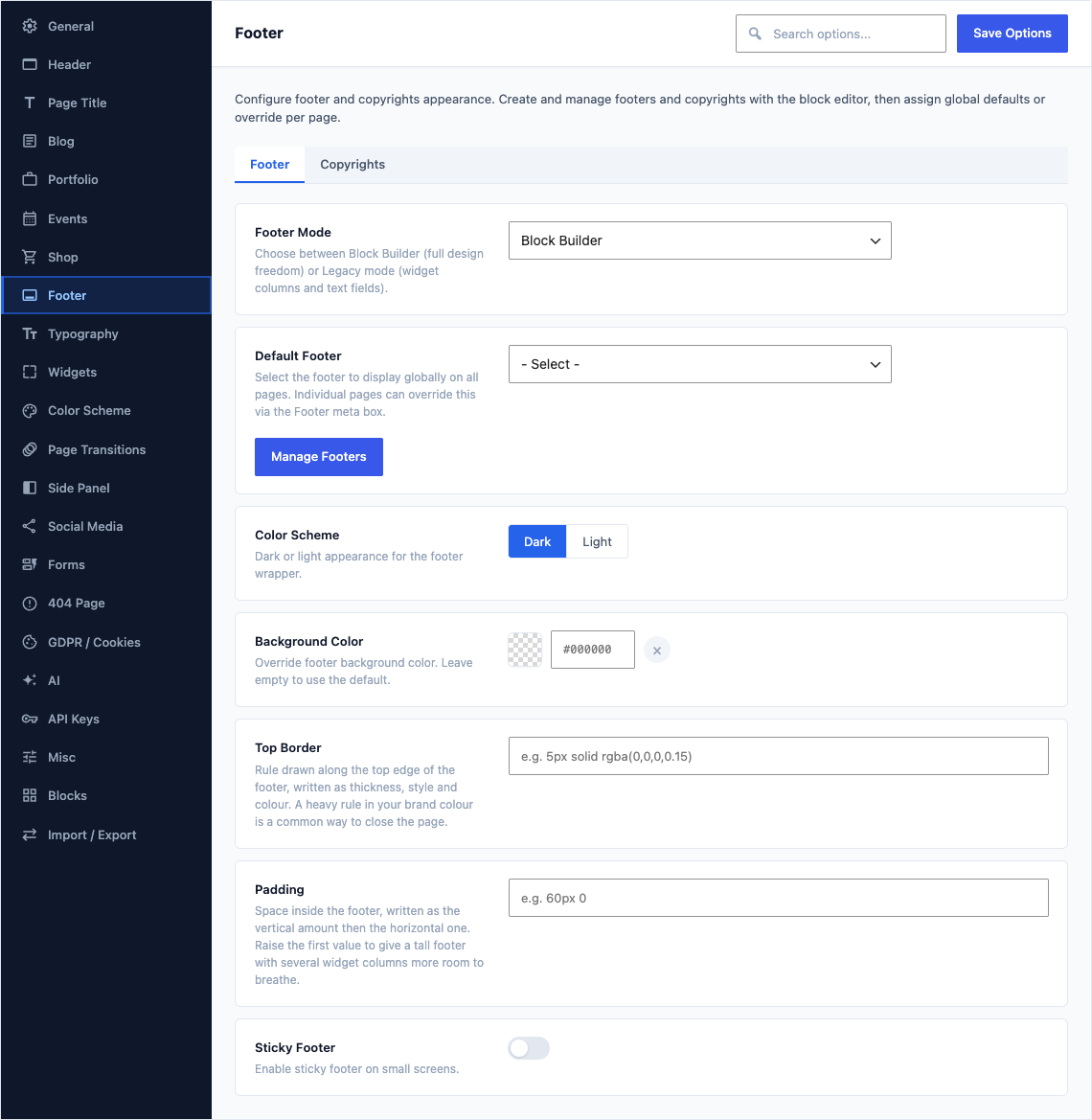
The tab sits in the rail on the left of the screen, with its own panel beside it:
Footer
This group holds the following settings:
Footer ModeDefaultBlock Builder
Choose between Block Builder (full design freedom) or Legacy mode (widget columns and text fields).
ChoicesBlock BuilderLegacy (Widgets & Text)
Default FooterDefaultEmpty
Select the footer to display globally on all pages. Individual pages can override this via the Footer meta box.Manage Footers
Shown when Footer Mode is "Block Builder"
Color SchemeDefaultDark
Dark or light appearance for the footer wrapper.
ChoicesDarkLight
Background ColorDefaultEmpty
Override footer background color. Leave empty to use the default.
Top BorderDefaultEmpty
Rule drawn along the top edge of the footer, written as thickness, style and colour. A heavy rule in your brand colour is a common way to close the page.
PaddingDefaultEmpty
Space inside the footer, written as the vertical amount then the horizontal one. Raise the first value to give a tall footer with several widget columns more room to breathe.
Sticky FooterDefaultOff
Enable sticky footer on small screens.
Footer ColumnsDefault4 Columns
Number of widget columns displayed in the footer widget area.
Choices1 Column2 Columns3 Columns4 ColumnsShown when Footer Mode is "Legacy (Widgets & Text)"
Copyrights
This group holds the following settings:
Copyrights ModeDefaultBlock Builder
Choose between Block Builder (full design freedom) or Legacy mode (text fields and menu).
ChoicesBlock BuilderLegacy (Text & Menu)
Default CopyrightsDefaultEmpty
Select the copyrights bar to display globally. Individual pages can override via the Copyrights meta box.Manage Copyrights
Shown when Copyrights Mode is "Block Builder"
Background ColorDefaultEmpty
Override the copyrights bar background color. Leave empty to use the default.
Copyrights Top BorderDefaultEmpty
Rule drawn along the top edge of the copyright bar, written as thickness, style and colour. A faint rule separates the bar from the footer above without adding another block of colour.
Copyrights PaddingDefaultEmpty
Space inside the copyright bar, written as the vertical amount then the horizontal one. Lower the first value to keep the bar as a thin strip.
Copyrights TextDefault
Copyrights © 2026 All Rights Reserved by Canvas.Copyright line shown in the copyrights bar. HTML is allowed.
Shown when Copyrights Mode is "Legacy (Text & Menu)"
Copyrights LinksDefaultEmpty
Optional HTML links for the copyrights bar, e.g. Terms of Service or Privacy Policy.
Shown when Copyrights Mode is "Legacy (Text & Menu)"
Copyrights Contact InfoDefaultEmpty
Contact details displayed in the copyrights bar. Each item shows an icon and text (e.g. phone number, email, address).
Shown when Copyrights Mode is "Legacy (Text & Menu)"
Copyrights MenuDefaultOn
Display a navigation menu in the copyrights bar. Assign a menu to the Copyrights Menu location under Appearance → Menus. Only top-level items are shown, separated by /.
Shown when Copyrights Mode is "Legacy (Text & Menu)"