
Shop
Store-wide defaults for the catalogue, the product page, the cart and checkout, and the header mini cart. A block that sets one of these on its own still wins on the page it is placed on.
These settings apply to the whole site, so a change here is visible on every page that uses the feature. Find them under Canvas > Theme Options, in the Shop tab.
The tab sits in the rail on the left of the screen, with its own panel beside it:
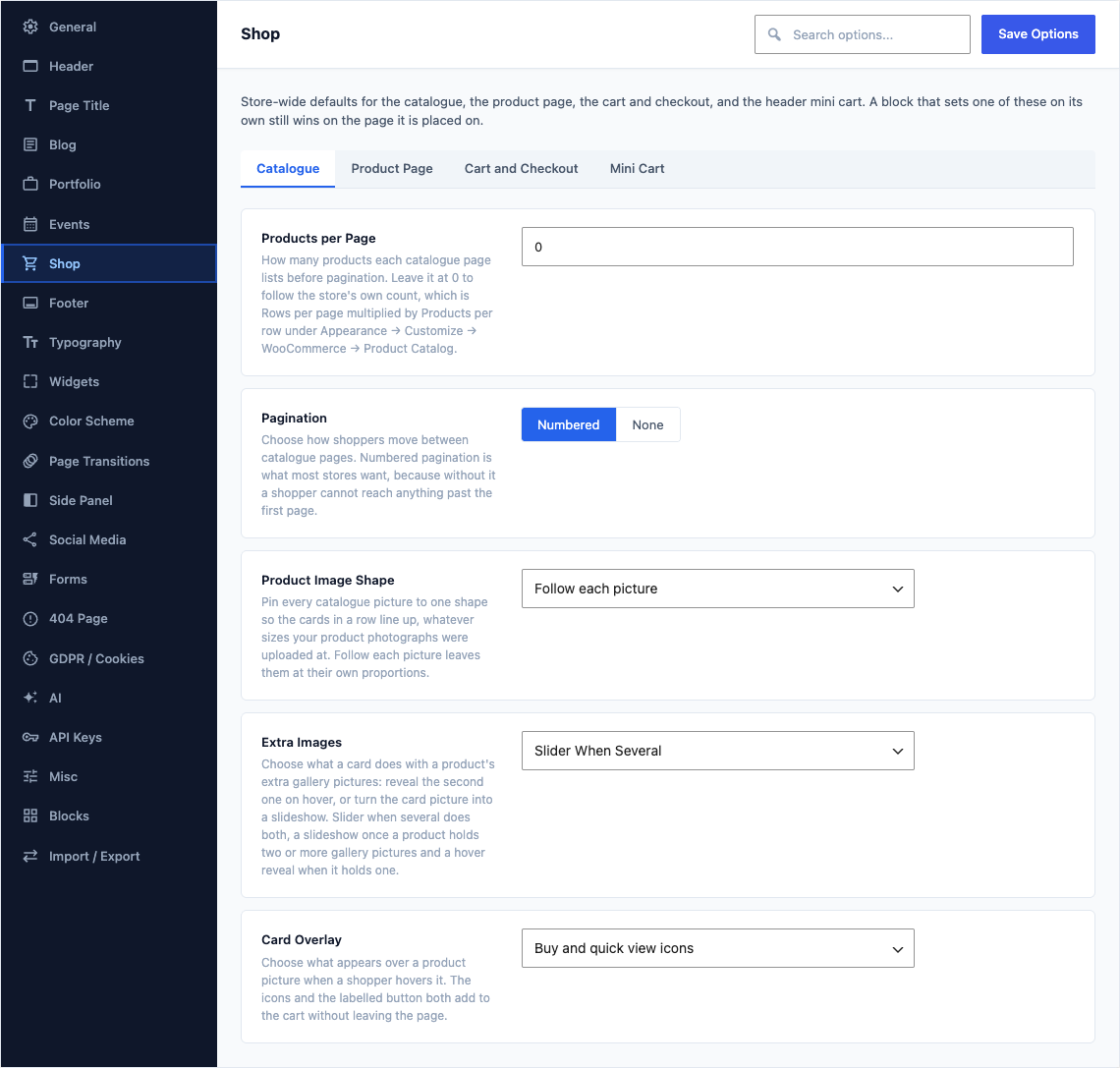
Catalogue
This group holds the following settings:
Products per PageDefault
0How many products each catalogue page lists before pagination. Leave it at 0 to follow the store's own count, which is Rows per page multiplied by Products per row under Appearance → Customize → WooCommerce → Product Catalog.
PaginationDefaultNumbered
Choose how shoppers move between catalogue pages. Numbered pagination is what most stores want, because without it a shopper cannot reach anything past the first page.
ChoicesNumberedNone
Product Image ShapeDefaultEmpty
Pin every catalogue picture to one shape so the cards in a row line up, whatever sizes your product photographs were uploaded at. Follow each picture leaves them at their own proportions.
ChoicesFollow each picture (empty)SquarePortrait (4:5)Portrait (3:4)Tall (2:3)Landscape (4:3)Landscape (3:2)
Fit Pictures To That ShapeDefaultFill and crop
Choose what happens to a picture whose own proportions differ from the shape above. Fill and crop enlarges it until it covers the card and trims what hangs over; Fit inside shows the whole picture and leaves space at its edges.
ChoicesFill and cropFit insideShown when Product Image Shape is set
Extra ImagesDefaultSlider When Several
Choose what a card does with a product's extra gallery pictures: reveal the second one on hover, or turn the card picture into a slideshow. Slider when several does both, a slideshow once a product holds two or more gallery pictures and a hover reveal when it holds one.
ChoicesReveal on HoverImage SliderSlider When Several
Card OverlayDefaultBuy and quick view icons
Choose what appears over a product picture when a shopper hovers it. The icons and the labelled button both add to the cart without leaving the page.
ChoicesBuy and quick view iconsOne labelled buttonBuy icon on the pictureno overlayNothingthe card is a link only
Product Page
This group holds the following settings:
Products Under a ProductDefaultUp-sells (curated on the product)
Choose which products appear under a product. Related picks them from shared categories and tags, so it works with no setup; Up-sells and Cross-sells show only the products you pick by hand on each product.
ChoicesRelated (matched by category / tag)Up-sells (curated on the product)Cross-sells (curated on the product)
Order ByDefaultCurated Order (as stored on the product)
Choose the order that strip is shown in. WooCommerce shuffles related products by default, so an unpinned strip is a different strip on every request; anything other than the default pins it.
ChoicesWooCommerce Default (shuffled)Curated Order (as stored on the product)Sort Order (menu_order)TitleDatePrice
LayoutDefaultCarousel
Lay the strip out as a grid of cards, or as a carousel a shopper slides through.
ChoicesGridCarousel
Product LimitDefault
5The most products the strip shows, however many match.
ColumnsDefault4 Columns
How many products sit side by side on a wide screen. Narrow screens stack them.
Choices2 Columns3 Columns4 Columns5 Columns6 ColumnsShown when Layout is "Grid"
Add to Cart Without ReloadingDefaultOn
Add products to the cart without reloading the page, so a shopper stays where they were. If your store is set to redirect to the cart after adding, that setting wins.
Confirmation StyleDefaultToast
Choose whether the confirmation floats over the page and fades, or sits beside the button until the shopper moves on.
ChoicesToastInline MessageShown when Add to Cart Without Reloading is on
Toast PositionDefaultTop Right
Where on the screen the floating confirmation appears.
ChoicesTop LeftTop CenterTop RightMiddle LeftMiddle CenterMiddle RightBottom LeftBottom CenterBottom RightShown when Add to Cart Without Reloading is on and Confirmation Style is "Toast"
Gallery StyleDefaultSlider with Thumbnails
Choose how a product's pictures are shown: a main picture with thumbnails under it, one slide at a time, all of them stacked down the column, or a grid that opens in the lightbox.
ChoicesSlider with ThumbnailsCarousel (one slide at a time)Stacked (all imagesone under another)Masonry grid (lightbox)
Cart and Checkout
This group holds the following settings:
Show Returning Customer PromptDefaultOn
Show a returning customer prompt above the checkout form so a shopper with an account can sign in and have their details filled in. Your WooCommerce account settings still decide whether the prompt is allowed at all.
Show Coupon PromptDefaultOn
Show a coupon prompt above the checkout form so a shopper can redeem a code without leaving the page. It appears only while coupons are enabled in your WooCommerce settings.
Suggest Products in the CartDefaultOn
Suggest related products under the cart, taken from the cross-sells you set on the products already in it. A cart whose products name no cross-sells shows nothing.
Suggestion LimitDefault
4The most suggestions the cart shows, however many the products in it name.
Shown when Suggest Products in the Cart is on
Mini Cart
This group holds the following settings:
Cart IconDefaultEmpty
The icon on the cart button in your header, kept whenever the cart refreshes after a shopper adds something. Leave it empty for the shopping bag the theme ships with.
Cart HeadingDefaultEmpty
The heading above the list of items in the cart dropdown. Leave it empty for Shopping Cart.
Empty Cart TextDefaultEmpty
The message a shopper sees in the cart dropdown before they have added anything. Leave it empty for Your cart is empty.